
XF Functions are built-in OneStream Excel functions that can be used for a variety of different tasks. They can push and pull data directly from OneStream into Excel, and many of our clients use XF Functions to create highly formatted reports. Below is a countdown of our top 5 tips and tricks to help you master these functions.
TIP #5
Quickly determine if an entity is a base member
XF Formulas can be used to both retrieve data and to pull various attributes about a dimension. An example of this would be pulling a hierarchy property. When used with the entity dimension, this function will allow you to determine if the entity is a base member or not.
Formula Example
=XFGetHierarchyProperty(“Entity”, “HoustonEntities”, B3, “HasChildren”, “Houston”, “Default”, TRUE)
TIP #4
Pull FX rates
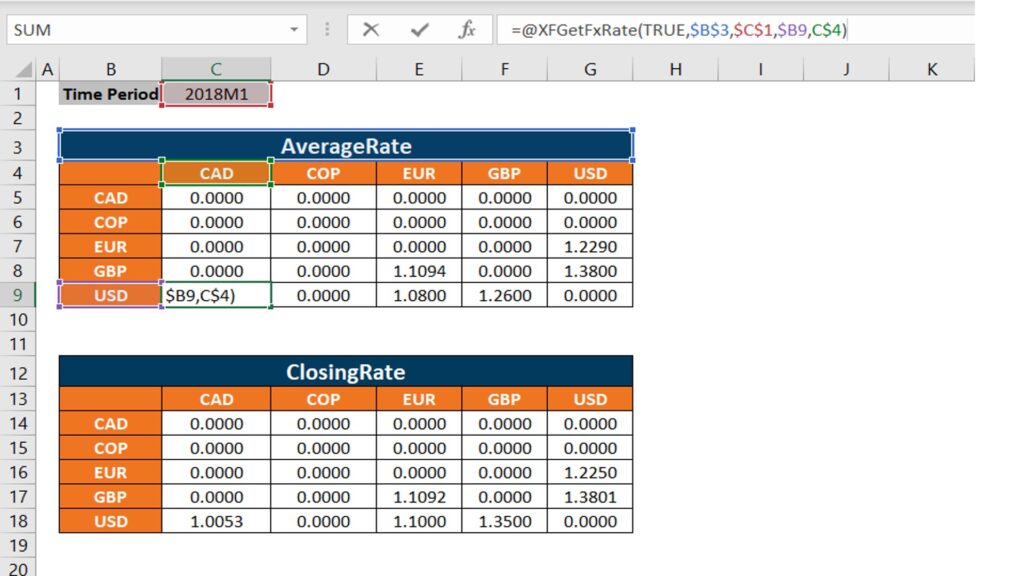
Another useful XF Function allows users to pull FX Rates into Excel. End users can easily see rates, without needing access to the FX rates page on the application tab.
Formula example
=@XFGetFxRate(TRUE, “AverageRate”, “2018M1”, “USD”, “EUR”)
The screen shot below shows a formatted report leveraging the XFGetFxRate formula. You are also able to reference other cells in the formula to make it more dynamic.
TIP #3
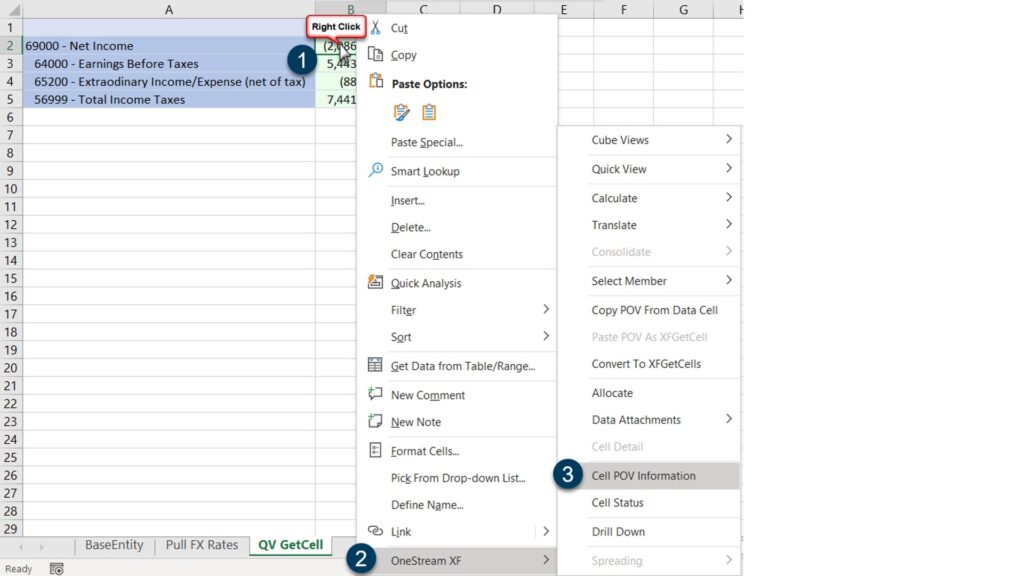
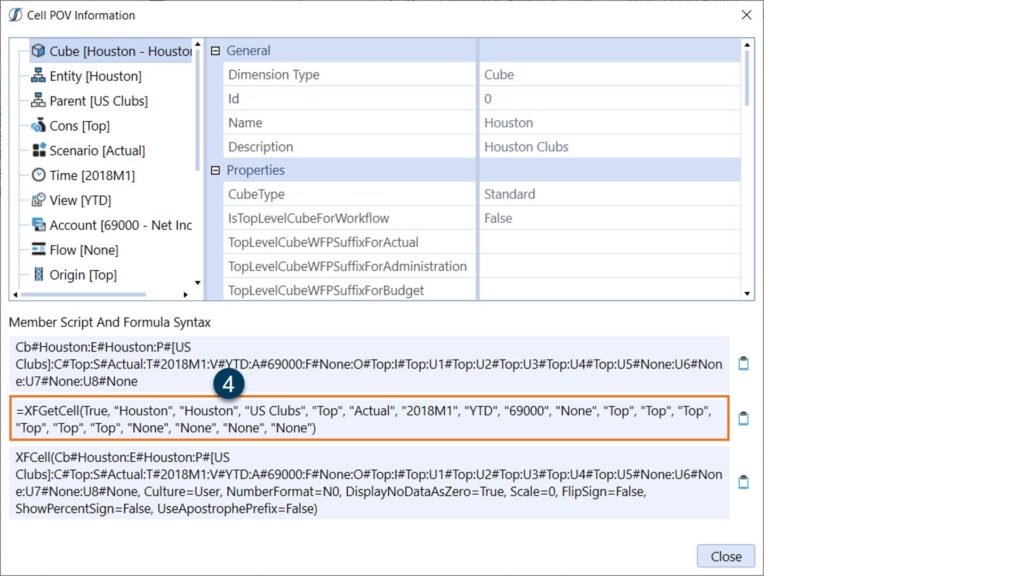
Use cell POV to get XFGETCELL formula
Using the Cell POV Information context pane you can easily retrieve an existing data point’s XF Function. This is useful so you don’t have to start from scratch when creating an XFGETCELL. Simply copy the formula and paste into Excel.
TIP #2
Substitution variables can be used in formulas
XF Functions are able to leverage substitution variables. Instead of hardcoding a time period, account, or UD in this example, a user can enter in POV, Global, or WF. POV will look at the user’s cube POV or default POV. Global will look at the global POV (typically set by admins) to pull information. Global POVs consist of time and scenario. WF will look at the Workflow POV.
Formula example
=XFGetCell(TRUE, “GolfStream”, “Houston”, “US Clubs”,”POV”,”WF”,”Global”, “YTD”, “43000”, etc…)
TIP #1
Create a dynamic list using Quick View
This tip is especially useful for formatted XF Function reports in Excel. Leveraging the existing Data Validation logic in Excel, users can reference a Quick View to make their drop down’s more dynamic. Dimensions, such as UDs, that have a large number of members, or change frequently are perfect for this trick.
Consider the design of the report you are creating. In this example, we chose the UD2:Product dimension for the drop-down. The first step is to create the list of members that will serve as the source for the drop-down menu.
This is achieved by creating a separate Quick View with a single dimension in the rows and all other dimensions in the POV. In this case, our member filter for U2 is defined as: “U2#Top.Children”. By using a function like “.Children” or “.Base”, the list will dynamically update to include new, removed, or moved members.
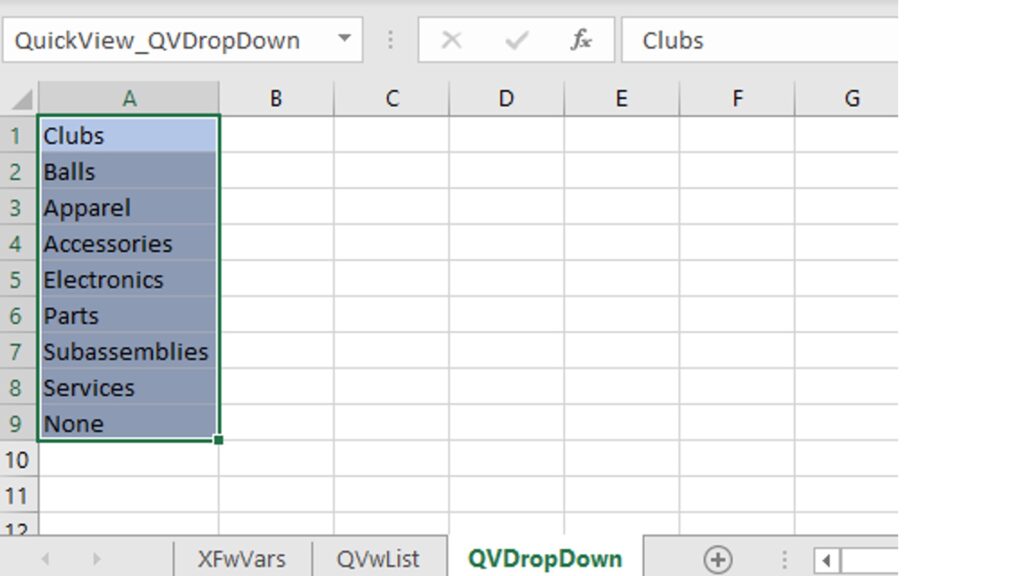
Go to the data tab on the Excel ribbon and select data validation. On the settings tab, under the allow section, select list. For your source, you will highlight the entire Quick View. You will note that the source will update to the name of the Quick View once it has been selected.
Since the data validation list source is set to a named range, it will also dynamically update as required.
For questions about these and other OneStream tips and tricks, please contact us at insights@finit.com.